
CryptoProcessing gives your business a secure way to process digital assets through a dedicated merchant wallet.
The guide here will walk you through the flow step by step, describing how to send crypto, create mass payouts, convert funds to fiat, and withdraw to bank accounts from the Back Office.
1. Open your merchant wallet
Log in to your CryptoProcessing Back Office and open your merchant wallet.
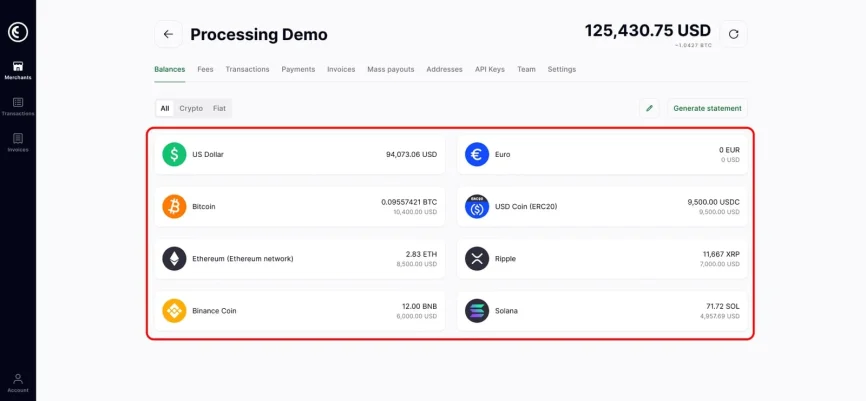
This displays the Balances tab of your merchant wallet with access to various currencies.
Here you can:
- View every asset in your account in one list
- Switch between All, Crypto, and Fiat filters
- See both the crypto balance and its value in fiat for each asset
This screen helps you confirm that you have sufficient funds in the correct currency before sending a payment.
2. Select an asset and click “Send”
On the Balances screen, you can click any asset. A side panel opens with three actions: Send, Receive, and Exchange.
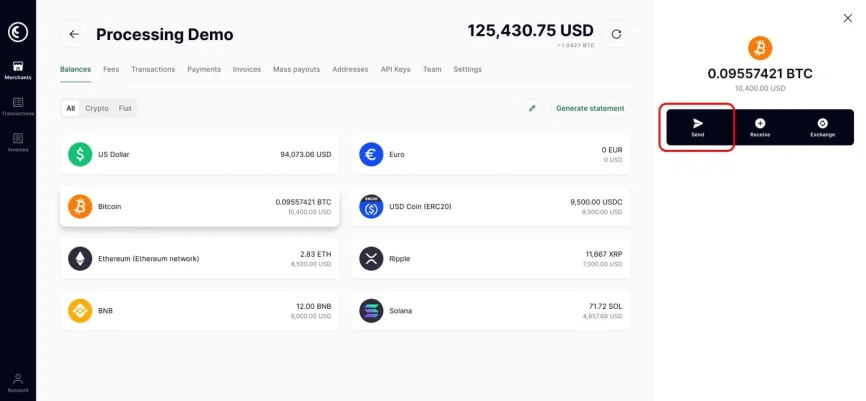
To create a transfer:
- Click on the asset in your Currencies list.
- In the side panel, choose Send.
This opens the send form for your wallet – in our case, it’s Bitcoin.
3. Enter the recipient address and amount
The send form lets you define the payment details and prepare a transaction.
Fill in the fields:
- Recipient’s address – Paste the wallet address or use the copy function from your records.
- Amount – Enter how much you want to send. You can see both the digital currency and its fiat value to help ensure you can match the expected payout.
In the second half, the form will show you a detailed breakdown of all the fees involved.
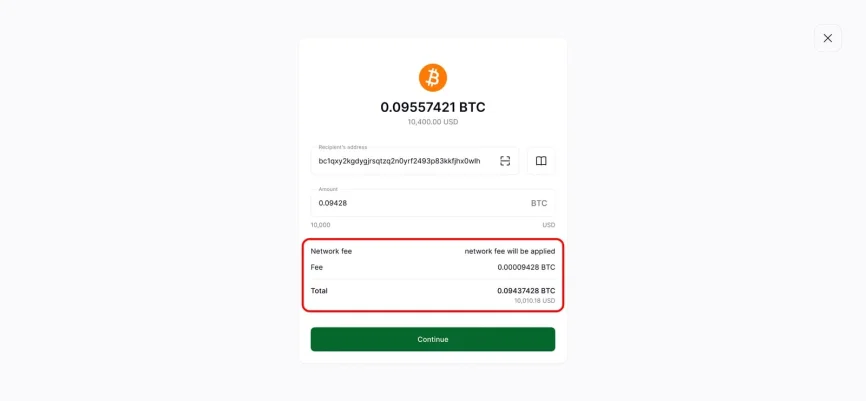
You’ll find:
- Network fee – The blockchain fee that applies to this transfer
- Fee – The exact amount in the asset
- Total – The final amount that will leave your wallet, including all fees
Take a moment to double-check the address and the amount before proceeding.
4. Confirm the transfer and save the address
After you confirm, the success screen appears, showing you all the payment details.
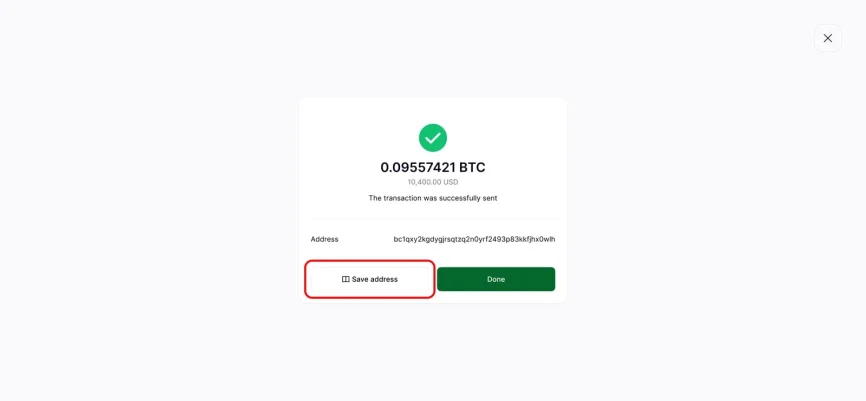
Here you can:
- See the amount sent in your cryptocurrency and fiat
- See the recipient address
- Use Save address to store this wallet for future payments
Saving addresses speeds up repeat transfers to partners, suppliers, or internal wallets.
5. Using Mass Payouts for multiple transfers
If you need to send multiple payments, navigate to the Mass Payouts tab, available in your dashboard.
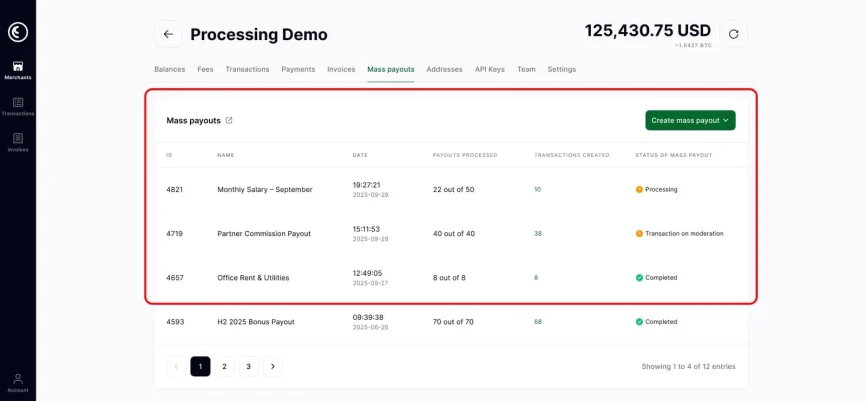
This screen will show you a list of previous payout batches, for example:
- Monthly salary payouts
- Partner commission payouts
- Office rent and utilities
- Bonus payouts
Mass Payouts arrange payments to multiple recipients at once, so your business can send up to one hundred cryptocurrency transactions in a single batch.
Click Create mass payout to start a new batch.
6. Mass payouts in crypto vs. with conversion
After you click Create mass payout, a small menu will appear.
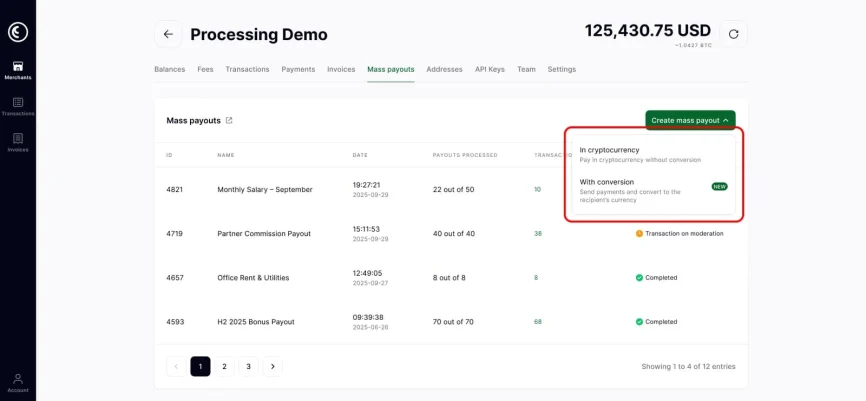
You have two options:
- In cryptocurrency – Pay your recipients directly in crypto without conversion.
- With conversion – Send funds and convert the payout into the recipient’s preferred currency.
Payouts with conversion are useful for salaries, bonuses, or partner payouts when each recipient expects a fixed amount in a fiat or stablecoin currency.
7. Upload your payout file and review the summary
The Create mass payout with screen appears when you choose an option, prompting you to initiate a payout. You can give it a custom name and upload a CSV with wallet addresses.
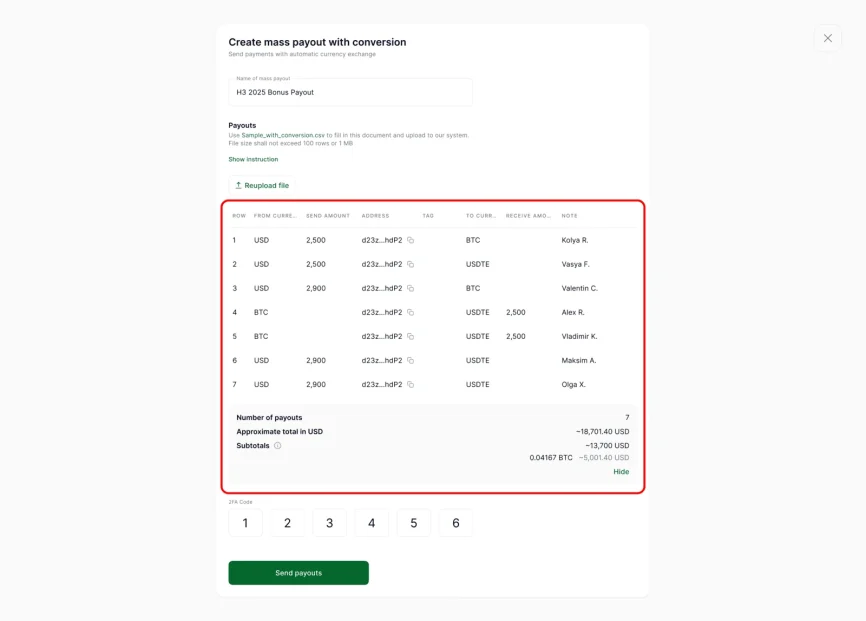
Here is a breakdown:
- Prepare the CSV file
- Use CryptoProcessing’s sample CSV template for simplicity.
- The file supports up to 100 rows.
- Upload the file
- Click Reupload file (or Upload file on your first run).
- The system reads each row and builds a preview table for you.
- Check the preview table
The table includes:- From currency and Send amount
- Address for each recipient
- To currency and Receive amount
- Optional Note, such as the employee or partner name
- Below the table, you see:
- Total number of payouts
- Approximate total in USD
- Subtotals by currencies
- Confirm and protect the payout with 2FA
- Enter your six‑digit 2FA code at the bottom of the screen.
- Click Send payouts.
The Mass Payouts feature is part of the standard Back Office. There is no extra fee for the feature itself; you only pay for regular transaction processing.
8. Track every payout status in real time
After submission, your new batch reappears in the Mass Payouts list. The right‑hand panel shows full details for each selected payout.
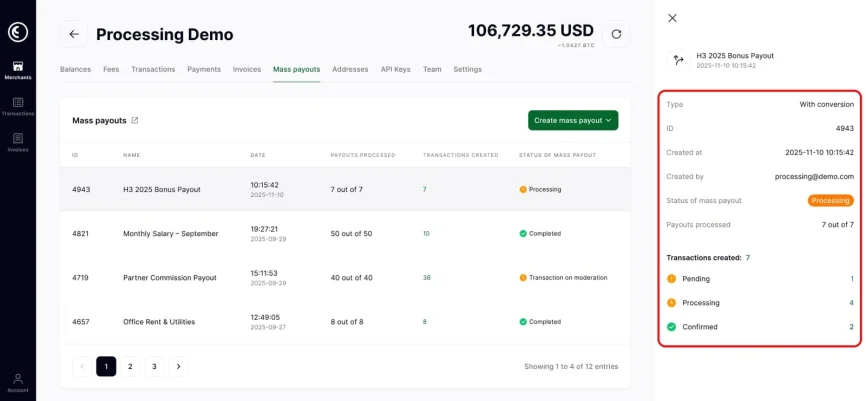
You can track:
- Type – i.e, “In cryptocurrency” or “With conversion”
- Status of mass payout – Pending, Processing, Completed, Transaction on moderation
- Payouts processed – How many transfers out of the total are done
- Transactions created – Listed by status (Pending, Processing, Confirmed)
You can easily track all transactions linked to a specific mass payout, which makes reconciliation and reporting straightforward.
Start sending crypto with CryptoProcessing
CryptoProcessing provides secure, well‑documented transactions for every merchant. Mass payouts, access management, and accounting help offer your finance team an easy way to work with crypto. All our features are designed to be simple and intuitive for businesses used to traditional finance.
Ready to connect your business to crypto users?